화면 전환 시 뒤로 가기 버튼 생성

위 화면은 우리가 원하는 것이 아님..!
뒤로 가기 버튼이 있어서 화면 전환이 가능했으면 좋겠음!
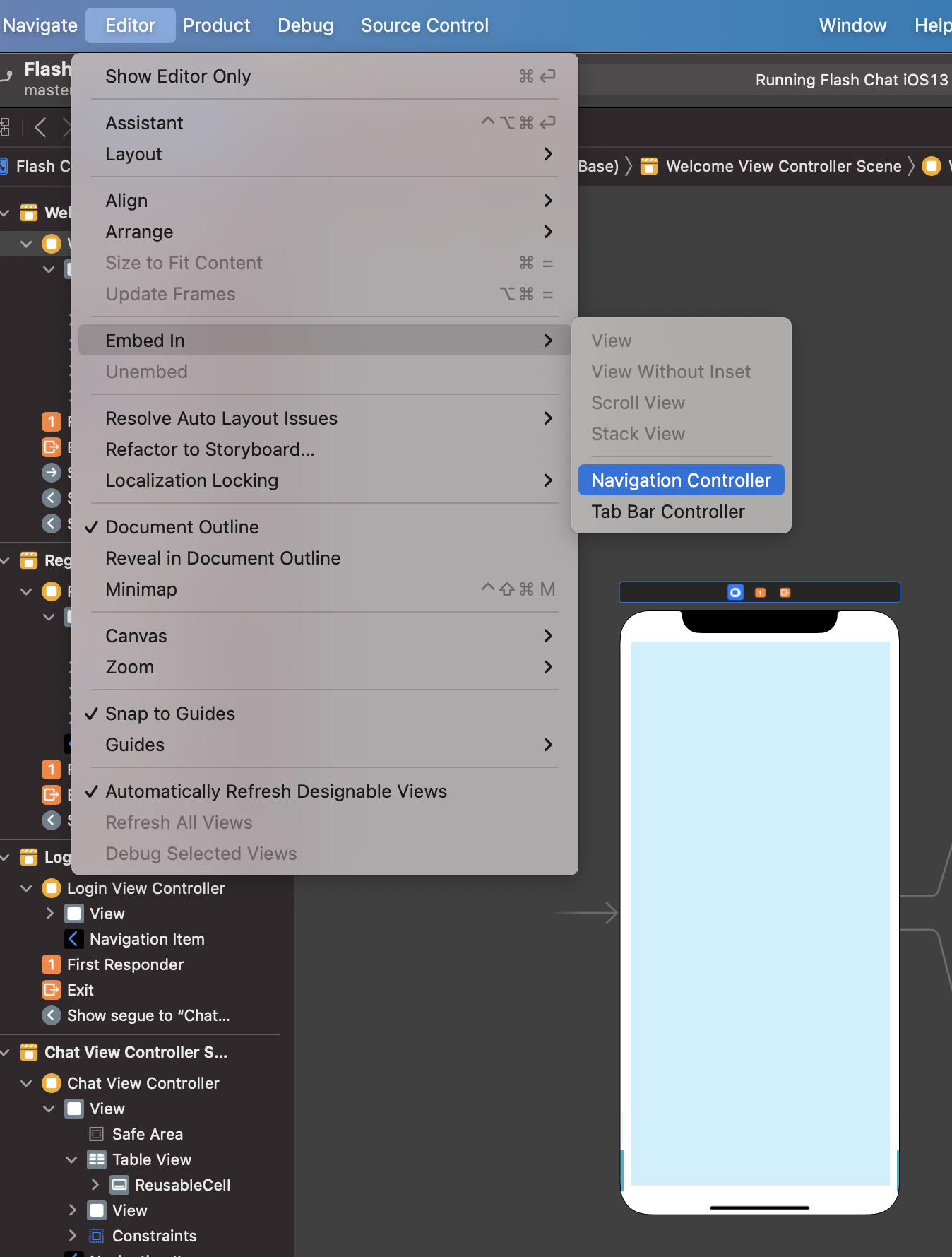
방법: 화면 위 노란 버튼(View controller) 클릭 - Editor - Embed In - Navigation Controller 추가
각 화면 위에 Back 버튼이 생성됨
CocoaPods 설치
CocoaPods? 다양한 라이브러리를 사용할 수 있도록 도와줌.
= Package Dependency Manager
장점: 패키지 버전에 변화가 생겨도 개발자가 신경 쓸 필요 X
pod update만 수행해주면 알아서 버전 업데이트
https://guides.cocoapods.org/using/getting-started.html#toc_3
CocoaPods Guides
CocoaPods is fully open-sourced, so it depends on community contributions to get better. If you're looking to start working on CocoaPods, this is the place to start.
guides.cocoapods.org
이외에도 다음의 패키지 매니저들이 있음
- Carthage
- Swift Package Manager
터미널에 다음 2개 명령어 차례대로 입력
sudo gem install cocoapodspod setup --verbose
설치 상태 확인
pod --version
CocoaPods 사용
1. 터미널에서 원하는 폴더로 이동해서 pod init 명령어 입력
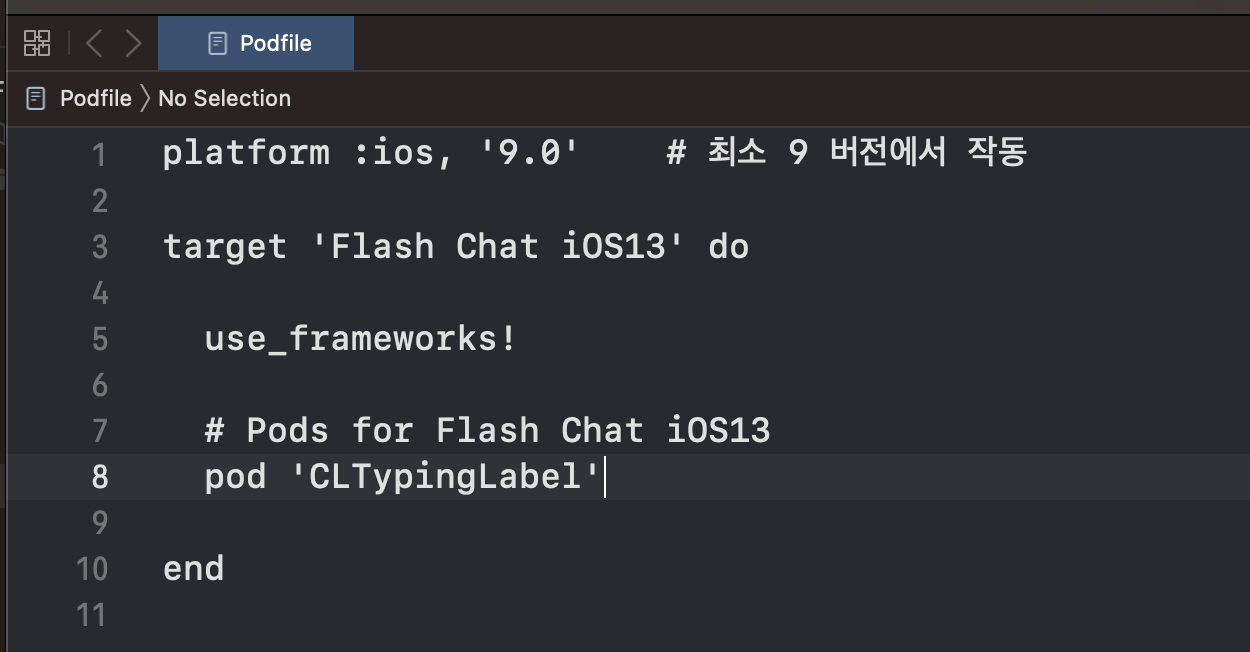
2. Podfile이 생성되면 Xcode로 열고 수정
3. 터미널로 돌아가서 pod install
설치가 끝나면 다음 메시지를 확인할 수 있음
[!] Please close any current Xcode sessions and use `Flash Chat iOS13.xcworkspace` for this project from now on.
Pod installation complete! There is 1 dependency from the Podfile and 1 total pod installed.
4. 즉, 지금부터는 .xcoworkspace 파일(하얀색 아이콘)을 사용해야 함!
아래 가이드에 나와있는 것과 같이 버전을 지정 가능
ex) '~> 0.4.0' 추가
https://guides.cocoapods.org/syntax/podfile.html
5. 터미널에서 pod install
-> 버전 관련 에러 발생
Specs satisfying the `CLTypingLabel (~> 0.4.0)` dependency were found, but they required a higher minimum deployment target.
CLTypingLabel을 추가하려고 하는데 CLTypingLabel 깃헙에서 podspec파일을 자세히 보면 플랫폼 최소 ios 버전을 10.0을 요구하는 것을 확인 가능
-> Podfile의 9.0 버전을 높여줄 것
라이브러리 제거
- Podfile에서 추가한 라인 제거
- 프로젝트 종료
- 터미널에서 pod install
Firebase 연동
1. 프로젝트명 클릭 - Targets 선택 - General - Bundle Identifier 확인 후 앱 등록에 사용
2. GoogleService-Info.plist 다운로드
3. Info.plist와 같은 위치에 이동

Firebase로 회원가입
https://firebase.google.com/docs/auth/ios/password-auth?hl=ko#swift
Apple 플랫폼에서 비밀번호 기반 계정으로 Firebase에 인증 | Firebase Authentication
Google I/O 2023에서 Firebase의 주요 소식을 확인하세요. 자세히 알아보기 의견 보내기 Apple 플랫폼에서 비밀번호 기반 계정으로 Firebase에 인증 컬렉션을 사용해 정리하기 내 환경설정을 기준으로 콘
firebase.google.com
루트 화면으로 전환
navigationController?.popToRootViewController(animated: true) 메소드 사용
스택에 계속 쌓였던 화면이 루트 화면을 제외하고 모두 제거됨
커스터마이징 위젯 생성
말풍선 디자인 파일을 만들고 싶음!
New File - Cocoa Touch 선택- 원하는 Subclass 선택 & Also create XIB file 체크!
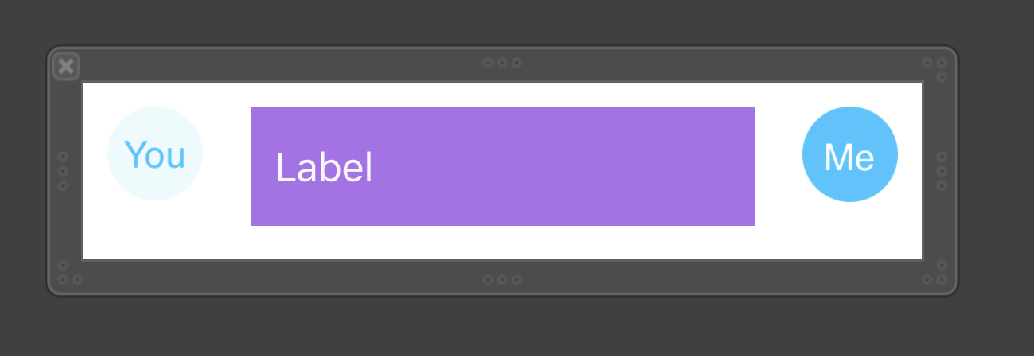
현재 유저가 누구냐에 따라 코드로 You 또는 Me를 가리도록 설정
Swift 문법 - as , is 키워드
- is는 타입 확인에 사용
- as는 타입 변환에 사용
- as! : 강제 다운 캐스팅
- as? : 옵셔널 타입으로 다운 캐스팅
- as : 업캐스팅 (실패할 리 없기 때문에 ?나 ! 필요 없음)
Any = 말 그대로 any type, 모든 객체가 해당
AnyObject = 클래스 타입으로 한정(ex: String, Int는 struct라서 포함될 수 없음)
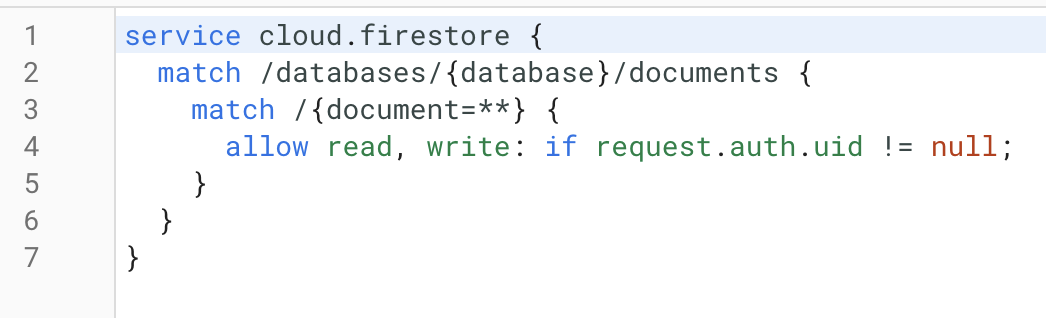
Firebase Database 규칙 업데이트
아무나 나의 데이터베이스에 접근해서 read, write 하지 못하도록 수정
→ 보안 강화
입력창을 클릭하면 키보드에 가려지는 문제
서드파티 라이브러리 사용하여 해결!
https://github.com/hackiftekhar/IQKeyboardManager
GitHub - hackiftekhar/IQKeyboardManager: Codeless drop-in universal library allows to prevent issues of keyboard sliding up and
Codeless drop-in universal library allows to prevent issues of keyboard sliding up and cover UITextField/UITextView. Neither need to write any code nor any setup required and much more. - GitHub - ...
github.com
이번엔 Swift Package Manager를 사용해볼 것(깃헙에 Package.swift가 있다면 가능)
File - Add Packages... - 해당 패키지 깃헙 URL
AppDelegate에 import IQKeyboardManagerSwift
→ func application 안에 IQKeyboardManager.shared.enable = true 추가
Navigation Bar의 back 버튼 색 변경
Navigation Bar 선택하고 Tint 색 변경
ViewController Lifecycle
viewDidLoad(): 뷰가 생성되고 한 번만 호출됨
→ viewWillAppear(): 뷰가 나타나기 직전에 호출됨. 사용자는 아무것도 볼 수 없음. UI 요소를 숨기거나 보여주기 좋은 시점
→ viewDidAppear(): 뷰가 화면에 나타남. 유저가 ViewController를 볼 수 있음. 타이머를 시작하기 좋은 시점
→ viewWillDisappear(): 뒤로 가거나 ViewController를 해제했을 경우의 메소드
→ viewDidDisappear(): 뷰가 이미 화면 밖으로 나간 시점. 뷰가 화면 밖으로 나갔다고 처리 완료되거나 메모리에서 바로 해제되지는 않음. "사용자가 볼 수 없다"는 의미일 뿐.
App Lifecycle
App Launched
→ App Visible
→ App이 백그라운드로 물러남(여기서 데이터를 바로 삭제하지 X)
→ 리소스 되찾음
앱의 lifecycle를 이해하는 것은 매우 중요!
https://developer.apple.com/documentation/uikit/app_and_environment/managing_your_app_s_life_cycle
Managing your app’s life cycle | Apple Developer Documentation
Respond to system notifications when your app is in the foreground or background, and handle other significant system-related events.
developer.apple.com
AppDelegate은 현재 앱이 lifecycle의 어떤 지점에 있는지 알려줌
SceneDelegate은 무엇인가?
→ iPadOS에서는 하나의 앱이 여러 윈도우에서 실행 가능. 각 윈도우의 lifecycle에 대해 보고함.
각 윈도우마다 다음의 메소드를 재정의하여 lifecycle의 각 지점에서 필요한 동작을 지정할 수 있음
sceneDidDisconnect, sceneDidBecomeActive, sceneWillResignActive, sceneWillEnterForeground, sceneDidEnterBackground
출처: https://www.udemy.com/course/ios-13-app-development-bootcamp/
'프로그래밍 > iOS' 카테고리의 다른 글
| Udemy iOS 강의 - 섹션 13 (0) | 2023.08.02 |
|---|---|
| Udemy iOS 강의 - 섹션 11~12 (1) | 2023.07.19 |
| Udemy iOS 강의 - 섹션 9~10 (0) | 2023.07.18 |
| Udemy iOS 강의 - 섹션 7~8 (0) | 2023.07.17 |
| Udemy iOS 강의 - 섹션 6 (0) | 2023.07.08 |